
DaVinci Resolve plugin
Traces Pro for DaVinci Resolve
Your arrows and circles draw themselves, right on the Edit page of DaVinci Resolve. Without opening Fusion.
Secure payment · Refundable as long as you haven't downloaded the plugin (14 days)
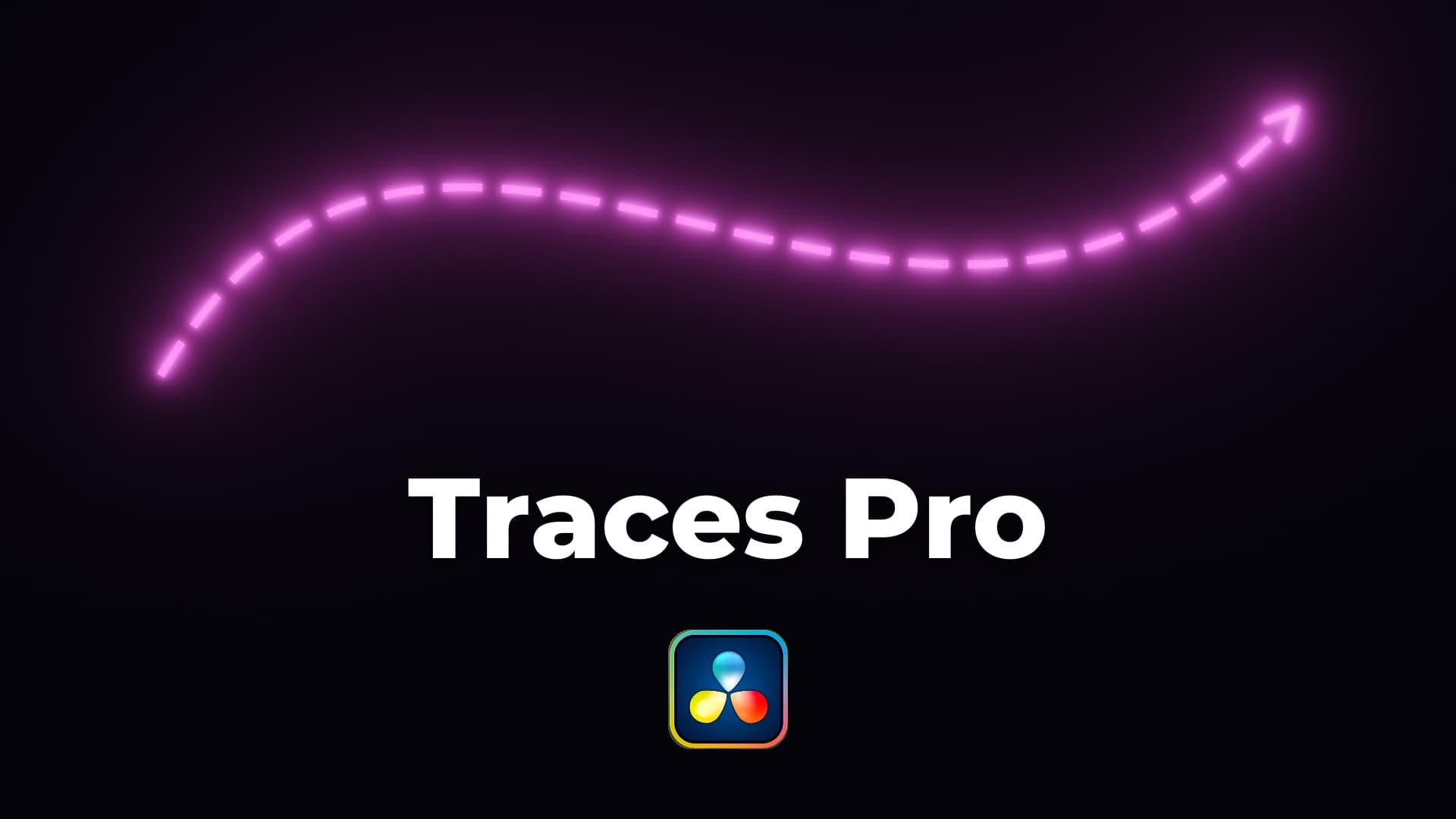
Drop Traces Pro above your clip, click a shape and the stroke draws itself. For tutorials, YouTube videos and anything where you need to point at something on screen.
By Kriss Norde, Blackmagic Design certified trainer.
An animated arrow, no workaround
In DaVinci Resolve, a simple arrow that draws itself means a mask in Fusion, keyframes, then the arrowhead built separately. I put arrows in almost every video I make: I built Traces so I never have to do that again.
- Drop the Traces Pro generator above your clip.
- Click a shape: line, curve, circle, rectangle, cross, check mark, zigzag, or your own path.
- Turn on "Auto Animate": the arrow draws itself on screen, with ease in and ease out.
Every shape and every cap has its own icon, and the settings use the same names as Fusion and DaVinci Resolve.
What it changes
Your own path, without leaving the Edit page
Pick "Freehand" and click in the viewer: each click places a point and the stroke follows. Right-click a point or press Delete to remove it.
A stroke that looks hand drawn
Marker, pencil, ballpoint pen or highlighter: the stroke jitters like a real hand, and the highlighter leaves a small ink blot where it stops.
Neon in one click
A glow with a real light halo, with pulse, atmosphere and anamorphic streaks.
An arrow that stands out on any video
Soft drop shadow, an outline like in Text+, or a color gradient scrolling along the stroke.
Strokes that move on their own
An arrowhead that bounces on arrival, marching dashes, echoes, a wave. Without a single keyframe.
Your style in one drag and drop
14 presets to drag from the effects library, and your own settings saved as presets to keep the same look across your whole channel.
Traces Lite or Traces Pro
| Traces Lite | Traces Pro | |
|---|---|---|
| Shapes | Line, curve, circle, rectangle | + cross, check mark, zigzag, freehand path |
| Animation | Keyframes you set yourself | Automatic, with ease in and ease out |
| Hand drawn styles, neon, shadow | No | Yes |
| Presets | No | 14 presets + your own |
| Price | Free | €25 until November 9, 2026, then €35 |
What you get
The plugin in English, the 14 presets and a PDF installation guide. Version 1 updates are included.
Launch price: €25 until November 9, 2026, then €35.
Secure payment, instant download. Refunded if you change your mind before downloading the plugin.
What you need
DaVinci Resolve 21 or later, free or Studio.
Installs in two minutes: the .fuse file goes into the DaVinci Resolve Fuses folder, then double-click the .drfx file. The guide gives you the paths for Windows and Mac.
Certified trainer
Blackmagic Design certified trainer - Kriss Norde
Certificate code 8569-242A-D684-44B1

FAQ
Frequently asked questions
Everything you need to know before getting Traces Pro for DaVinci Resolve.
Do I need Fusion?
+
No. Everything is set in the inspector of the Edit page, even the freehand path, which you draw with the mouse in the viewer.
Do I need keyframes?
+
No. Auto Animate draws the stroke, holds it and erases it if you want. You can still keyframe Start and End.
Does it work with the free version of DaVinci Resolve?
+
Yes. Traces Pro only uses Fusion tools that are available in the free version.
Is it slow?
+
Not with one or two options. With every option on, it takes about 0.4 seconds per frame in HD on my PC: the render cache then does the work.
I have a problem, what do I do?
+
Write to me from the contact page of the site. I answer myself.
Ready to get started?
Your arrows and circles draw themselves, right on the Edit page of DaVinci Resolve. Without opening Fusion.
€25
Refundable as long as you haven't downloaded the plugin (14 days)