DaVinci Resolve plugin
Creator Composer: Animation Plugin for DaVinci Resolve
Animate your titles, logos and transitions in one click on the Edit page of DaVinci Resolve. Then go as far as you want, all the way to Fusion.
Secure payment · Refund within 14 days
≈ $56 · charged in your currency at checkout
Try it free for 7 days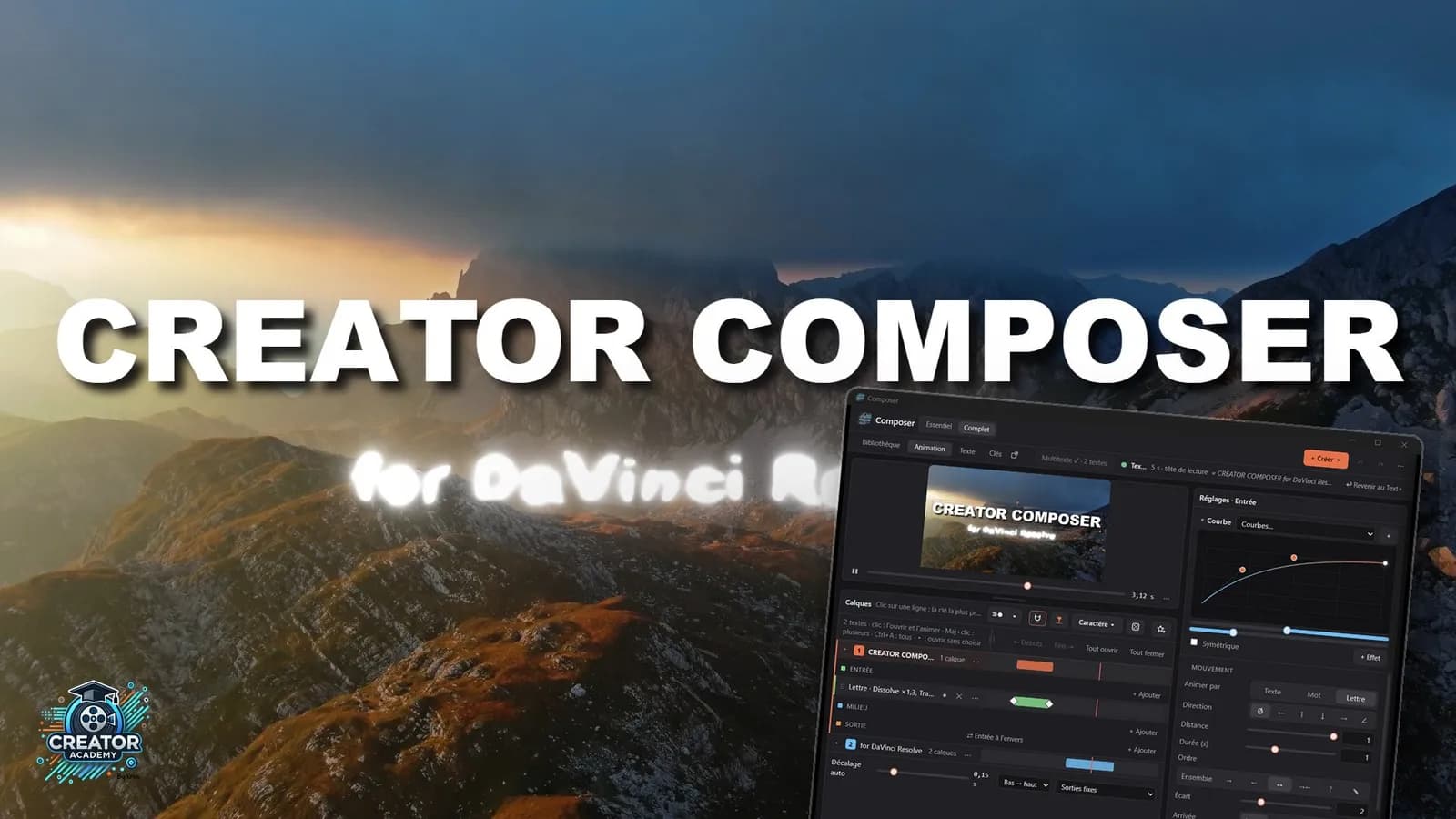
Try it free for 7 days. Made by Kriss Norde, Blackmagic Design certified trainer.
Motion graphics at the speed of layers: an animation plugin for DaVinci Resolve
DaVinci Resolve is excellent for editing and color grading. Fusion is unbeatable for compositing and visual effects. But for motion graphics, nodes are slower than layers, and some basic tools are missing. Just drawing a simple dotted line means hacking it together with shapes that mask pieces of the stroke. Animating a title means a Follower, keyframes, a curve to adjust in the Spline editor. And for the next title, you start over.
Creator Composer opens next to your timeline, on the Edit page. You double-click an animation: your title or your logo comes alive instantly, your cut becomes a transition.
Why I built Creator Composer
About fifteen years ago, I was an editor and someone asked me for my first animated videos. I knew nothing about it. I used the software of the time, built in Flash: you picked from their characters and their images, and you couldn't use your own photos unless you bought another pack. I made videos like that for months. It was hell.
Then I learned motion design and visual effects in After Effects. Two tools never left my screen: Animation Composer, to apply an animation in one click, and Flow, to adjust a curve without opening the graph editor.
When I realized Fusion was more powerful than After Effects, I switched. For compositing, no regrets. For motion design, it left a bitter taste. With practice, nodes get fast and they're a pleasure to use, but every animated title took me longer than with layers. And with every title, I missed those two tools.
Even today, when I teach Fusion, the motion design part always brings the same questions. And I have to admit to my students that in Fusion, motion design often means detours, shortcuts and patches. Fusion gets better with every version, but it wasn't designed for this.
Creator Composer is the animation plugin I was missing, built for DaVinci Resolve. I'm Kriss Norde, a Blackmagic Design certified trainer, and I built it for my own videos first.
A tool that grows with you
On day one, you click a preset. A few weeks later, you're building your own animations letter by letter. Creator Composer follows your level, from the first click all the way to Fusion.
Level 1: one click
You pick an animation, it's applied. 48 title animations, 48 for your logos and images, 125 transitions, tuned to look great as they are, with any font.

Title: Impact drop 
Title: Typewriter 
Title: Jelly 
Title: Hologram 
Title: Light speed 
Title: Card flip 
Title: Lost signal 
Title: Portal 
Title: Spinning top 
Logo: Impact drop 
Logo: Pogo 
Logo: Roll 
Logo: Coin flip 
Logo: Portal 
Logo: Lost signal 
Logo: Polaroid 
Logo: Ink 
Transition: Whip pan 
Transition: Cube to the right 
Transition: Zoomed iris
Level 2: your style
The same typewriter effect, three settings.

One effect, thin cursor, erased from the right 
multiple, terminal font, underscore cursor 
styles, pixel font, block cursor, random letters
You change the speed, drag the curve with the mouse, add a bounce or an elastic, choose the order the letters arrive in. Then you save the result as your own preset. Your videos keep the same style from one project to the next, and your titles stop looking like the ones from the pack everyone uses.

Impact drop, letter by letter from the center 
PC typewriter, slower 
Jelly, stronger bounce 
Light speed, to the right 
Elastic pop, word by word in random order 
Jack-in-the-box, maximum overshoot 
Pogo, letter by letter 
Camera flash, faster 
Blur slide, slow and soft 
Hologram, different color 
Card flip, letter by letter 
Spinning top, twice as fast 
Lost signal, longer 
Portal, word by word 
Whip, upward 
Tightrope, slower 
Vault, letters from right to left 
Glowing color wave, faster 
Roll, word by word 
Spy, slower
Level 3: your compositions
Every animation is built from layers, grouped in three phases: the In, the Middle (what lasts while the title is on screen) and the Out. Each layer has its own bar on a timeline: drag it to shift the timing, stretch it to slow it down.
On each layer, you choose whether it animates the whole text, word by word or letter by letter, and you stack effects: 129 in total, which can all be combined. One button turns on real motion blur for every In and Out, with Resolve's own settings, like the Shutter Angle.
A letter-by-letter In with a bounce, a pulsing Middle, a blurred Out: three layers, and you save it as your own preset.

Pop + per-line motion blur, pulse, blurred out 
Neon switch-on, pulsing neon, strobe out 
Typewriter, blinking cursor, decode out 
Letter-by-letter highlight, float 
Underline, breathing, wipe out 
3D pass, swaying 3D text 
Word-by-word impact, camera shake 
Letters coming together, disintegration out 
Behind a line, float 
Burn, pulsing glow 
TV switch-on, VHS at times 
Venom in, during and out 
Damaged text, dust, disintegration 
Arcing letters with motion blur, orbit 
Crazy letters, glitches at times, pixel sorting 
Zoom and radial blur, zoom push 
Letter-by-letter ripple, wave 
Outline trace, moving shadow 
3D logo swaying, reflection 
Burning logo, glow, blurred out
Level 4: with Fusion
Morph, pixel sorting, crumpled paper, burnt film, 3D cubes, layered glitches, and real letter-by-letter motion blur, cleaner than Text+.

Transition: Pixel stretch drips 
Transition: Spinning relief 
Transition: Unfolded paper ball 
Transition: Stop-motion paper toss 
Transition: Page curl 
Transition: Aged film 
Transition: Taped photo 
Transition: Flipping blocks 
Transition: Pixelated datamosh 
Transition: Center tear 
Transition: Light leak, fire 
Glitch title: Slices + RGB split 
Glitch title: Pixel sorting + RGB split 
Glitch title: Shifted blocks + Frame skip 
Transition: Thrown paper ball 
Transition: Film burn 
Transition: Morph 
Transition: RGB split 
Transition: Kaleidoscope 
Transition: Dripping pixel sorting
And when you build your own animations with Fusion's tools, Composer stays right beside you: its curves and keyframe graph shape the motion of your nodes without going through the Spline editor.
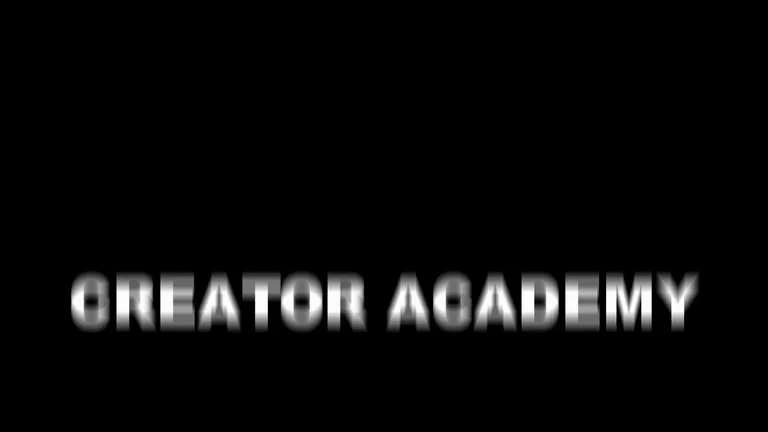
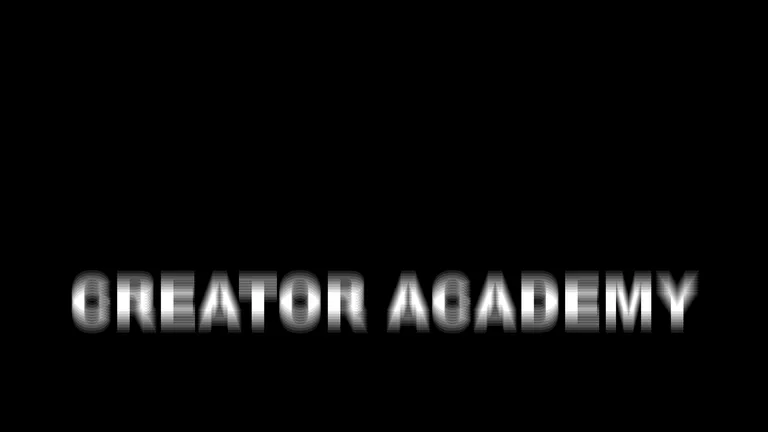
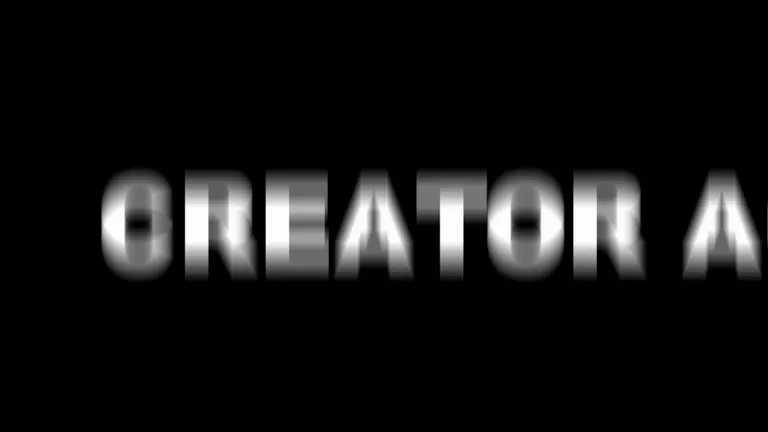
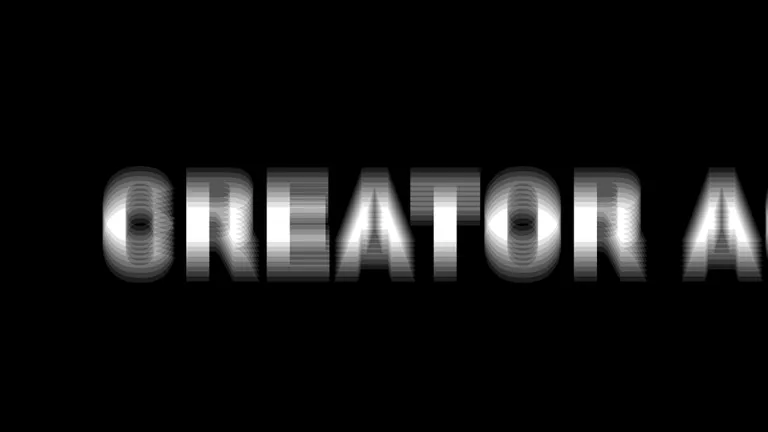
Motion blur on the same frame: on the left, Text+ in DaVinci Resolve; on the right, Composer. Drag the slider.
How it works
- Click your Text+ title in the timeline to select it.
- Click "Convert to Composer title" in the Composer panel. The title keeps its text, font and settings.
- In the Library, a click plays an animation in the preview, on your own text. A double-click applies it: your title is animated.
No title yet? "+ Create", then "+ Composer title" places one at the playhead. For a logo, a photo or a video, it's the same move: select the clip, "Convert to Composer", then double-click the animation. For a transition, "+ Create", then "+ Transition" places it on the cut closest to the playhead. And every setting stays yours, today and six months from now.
A podcast on Monday, a property tour on Tuesday, a vlog on the weekend
Every video needs its own style. Until now, that meant one more title pack, or an evening in Fusion redoing what you did the week before.
These six videos all come from the same panel, with the same Library. You go from the punchline in red to the real estate agent's neon without switching tools, and without starting from scratch.

Podcast 
Podcast, punchline 
Real estate 
Vlog 
Cinematic 
Opening credits
Three lines, three styles, one clip
You want a title where the first line slides in, the key word drops in red, and the last one arrives with a glow. In Resolve, that's three Text+ stacked on three tracks, three animations to set up one by one. And the day the edit shifts by a second, you realign all three.
With Composer's Multitext, the three lines fit in a single clip. Each keeps its own font, color and animation, set in the panel. Move the clip and everything follows. The client wants to change a word: you fix it in the Inspector, and each line keeps its style.
Subtitles that move with the voice, without placing them one by one
On a Short or a Reel, a lot of people watch with the sound off. Your subtitles are what keeps them watching. But animating them in Resolve means one Text+ per sentence, synced to the voice by hand, then animated, then resynced every time you touch the edit.
With Composer, you set an in and an out, then "+ Create" and "+ Subtitles". Composer listens to the voice: 16 seconds of speech take about 7 seconds. Every word lands on the right frame, already cut into short subtitles.
A misheard word? Double-click it, fix it, and it stays synced to the voice. Then pick an animation in the Library: it goes on all your subtitles at once, each on its own words.
1. Set an in and an out on the voice, then "+ Subtitles".
2. A misheard word: fix it in the words window.
3. The panel preview already shows the words arriving one by one.
4. A last touch in the Inspector, and the result in the Resolve viewer.
Already have Resolve subtitles on your timeline? Select them and they become animated subtitles, with the same timing.
What you get
The Composer plugin panel in English and French, 48 title animations, 48 animations for your logos and images, 125 transitions and 129 effects to combine, Multitext and subtitles from audio, with an installation guide and a user guide in PDF. A license for two computers, Windows or Mac. Updates are included.
For the price of a title pack, you get the tool that makes your own, for all your next videos.
Launch price: €50 instead of €100, for a limited time.
Try it free for 7 days. During the trial, you get a short course by email, one level at a time.
What you need
DaVinci Resolve Studio 21.2 or later, on Windows or Mac. Creator Composer doesn't work with the free version: Blackmagic Design keeps panels and scripts like this one for DaVinci Resolve Studio.
Installing it takes one move: you drag a folder to the right place, and the guide shows you how. No installer, no script to run.
Coming from After Effects or Premiere Pro? I compare the ways to get that workflow back in Animation Composer for DaVinci Resolve: is there an alternative?
Your next title can land letter by letter, in one click.
Creation contest
Launch contest
Make a video with Creator Composer, post it on Instagram, TikTok or YouTube Shorts with #CreatorComposer, then drop its link here (up to 3 videos). Vote for your favorites: the top 10% most voted videos win a Creator Composer license. Free to enter during the 7-day trial.
- Hashtag to use
- #CreatorComposer
- Prize
- A Creator Composer license for two computers (10% of the entries (at least 1))
- Dates
- Entries until 10 December 2026 at 23:59
Entries close in
Take part
- Make a creation with the plugin (the free trial is enough).
- Post it on Instagram, TikTok or YouTube Shorts with #CreatorComposer.
- Paste the link of your post below.
Up to 3 videos per person.
Log in to take partNo entries in the gallery yet.
Instagram, TikTok and YouTube are not associated with this contest and do not sponsor it. Videos load from these platforms only when you click them. Contest rules.
Certified trainer
Blackmagic Design certified trainer - Kriss Norde
Certificate code 8569-242A-D684-44B1

FAQ
Frequently asked questions
Everything you need to know before getting Creator Composer: Animation Plugin for DaVinci Resolve.
I don't know Fusion, can I use it?
+
Yes. Everything happens in the panel, next to the Edit page: you pick an animation, then adjust the speed or the curve if you like. Fusion is still there the day you want to go further.
Is it the equivalent of Animation Composer for DaVinci Resolve?
+
Animation Composer, by Mister Horse, is made for After Effects and Premiere Pro and doesn't exist for DaVinci Resolve. Creator Composer brings the same idea to Resolve, with curves you adjust with the mouse like in Flow: a library of animations applied in one click, that you then fine-tune. It has no connection with Mister Horse.
Does it work with my Text+ titles?
+
Yes. Composer converts a Text+ in one click, keeping its text, font and settings, then you pick the animation. If you make the title longer or change its text later, the animation follows.
Does it work with the free version of DaVinci Resolve?
+
No. Creator Composer requires DaVinci Resolve Studio, the paid version: Blackmagic Design keeps panels and scripts like this one for the Studio version. With the free version, Composer doesn't show up in the menu.
Can I try it before I pay?
+
Yes, free for 7 days, on one computer. During the trial, you get a short course by email: one level per email, from the first click to your own animations. If you buy it afterwards, you keep your presets.
I have a problem, what do I do?
+
In the panel, "Create a report for support" prepares a file with what's needed to understand the problem, without your media. Send it from the contact page of the site: I answer myself.
Ready to get started?
Animate your titles, logos and transitions in one click on the Edit page of DaVinci Resolve. Then go as far as you want, all the way to Fusion.
€50(≈ $56)
Refund within 14 days