DaVinci Resolve 21: The Must-Know New Features from Blackmagic Design
You've probably seen the news: DaVinci Resolve 21 is out, and as usual, Blackmagic Design went all in with this release. A whole new page, AI tools galore, a supercharged Fusion, an improved Fairlight... Video editing will never be the same.
In this article, I'll walk you through everything in the app that's really worth knowing, and honestly, some of these features blew me away.
And if you're new to DaVinci Resolve, free version or Studio, and you want to get off on the right foot with your edits, I have a course for beginners on Creator Academy (taught in French).
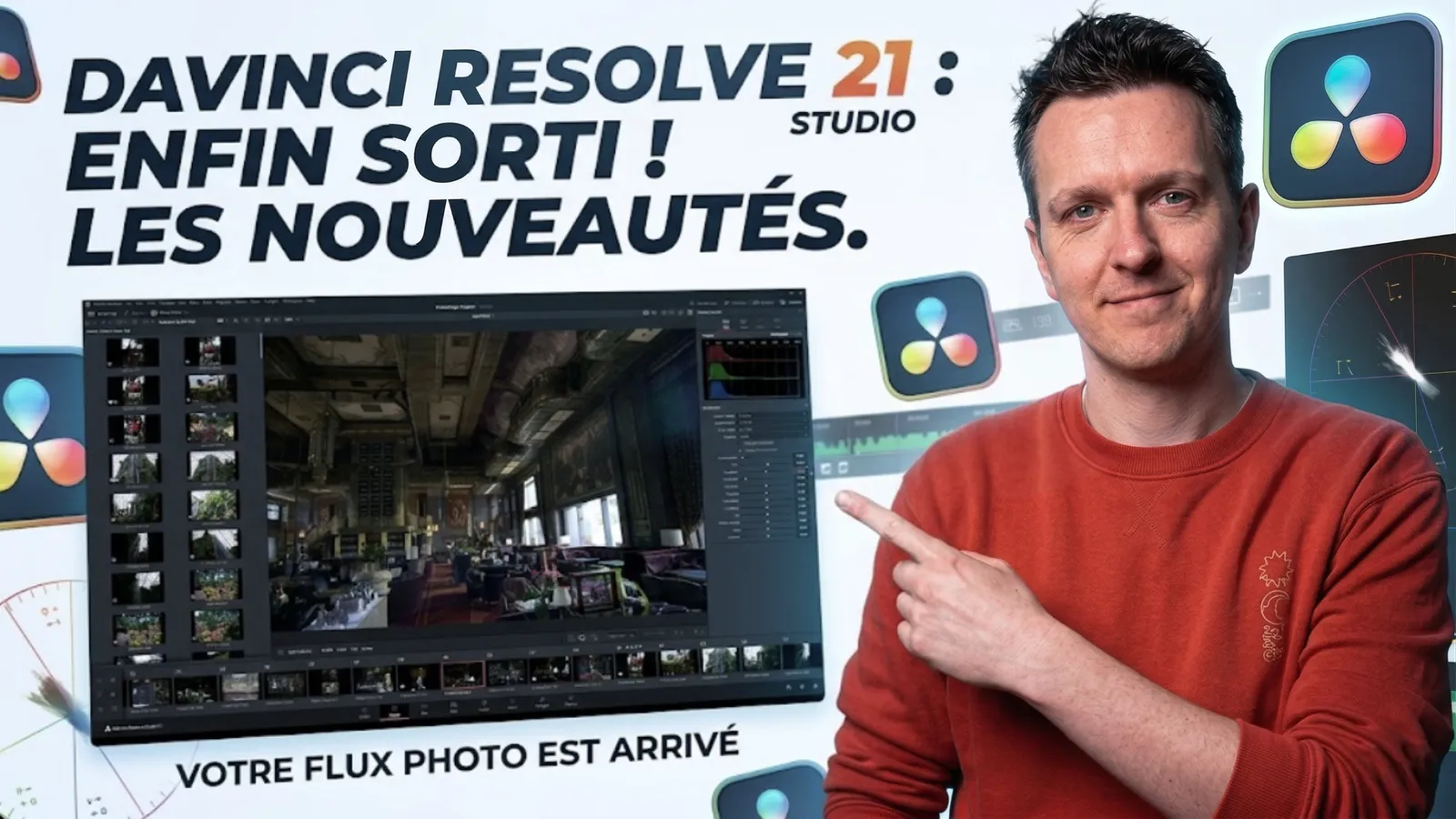
The Photo page in DaVinci Resolve 21: finally a real alternative to Lightroom
I've been waiting for this one for years. Seriously.
If, like me, you shoot photos on top of editing video and you had no choice but to juggle with Lightroom (or one of its competitors) to manage your catalogs, those days are over. DaVinci Resolve 21 includes a dedicated Photo page, and it's far from a gimmick.
The idea is simple: you import your photos into the Media Pool, make an album out of them, and get direct access to every tool of the Color page: primary corrections, curves, qualifier, Power Windows, node editor.
The exact same tools Hollywood uses for video color grading and post-production, now available for your still images.
You can import RAW files, get an automatic first correction, then fine-tune as you like. The LightBox view lets you see your whole album in real time while you grade. And for pros who shoot as a team and aim for quality, collaboration through Blackmagic Cloud is built in, so you can share your albums with a colorist on the other side of the world.
The icing on the cake: you can even plug in a Sony or Canon camera directly to capture images live and set the ISO, exposure and white balance from DaVinci. And export happens in batches, just like in any dedicated software.
This was one of the reasons I had stopped doing photography. Now it's solved.
The new AI tools in DaVinci Resolve 21: Blackmagic Design shifts into high gear
We knew AI was taking up more and more space in DaVinci Resolve. With version 21, it clearly goes to another level. Here are the new features that will truly change your workflow.
AI IntelliSearch: finding the needle in the haystack
You have hundreds of gigabytes of footage, and you're looking for one specific shot. A face, an object, a word spoken in an interview. Before, it was a total nightmare.
Now, AI IntelliSearch analyzes your media and lets you search by content: people, objects, dialogue, scenes. It transcribes the audio itself, decodes the images itself, and brings up the matching clips right in the library. You can even label faces to search for them by name.
I swear, this is going to save me hours and hours... and quite a few headaches.
AI CineFocus: artificial bokeh
You click on an area of the image, set the aperture and the focus range, and DaVinci Resolve 21 simulates depth of field with optical visual effects and bokeh. You can even add keyframes to create a "rack focus" (a focus pull). For shoots on a tight budget, it can literally save a shot in post-production (as long as you don't overdo it, of course: we're going for quality, not quantity!).
AI Face Age Transformer, AI Face Reshaper & AI Blemish Removal
A set of three tools that work directly on faces:
- Face Age Transformer: you age or de-age an actor by moving a slider. Ideal for playing with flashbacks or flash-forwards when editing.
- Face Reshaper: you reposition facial features (eyes, nose, mouth, jawline) on a moving subject. Tracking is automatic.
- Blemish Removal: removes skin imperfections (acne, spots, pores) while keeping the natural texture. THE SOLUTION for model videos, advertising or close-up interviews.
AI UltraSharpen & AI Motion Deblur
Two image correction tools that round things out nicely:
- UltraSharpen: the best sharpening tool ever built into DaVinci. It works on resized images to make usable shots that weren't, and it can fix slight focus issues.
- Motion Deblur: it analyzes motion blur and renders a result with much less blur. Perfect for slow motion and freeze frames when editing.
AI Slate ID
For shoots with a clapperboard, the AI automatically scans the image of the slate and extracts the metadata, even on dark or blurry shots. The info (scene number, take, camera...) goes right where it belongs. Hours of manual data entry saved.
Advanced AI Speech Generator
It generates voice from text, with the option to clone your own voice from a 10-second sample. You adjust the speed, pitch and inflections. Handy for a temporary or placeholder voice-over. For final results, other tools are still more convincing, but it really helps in a pinch.
What's new in DaVinci Resolve 21 on the Cut & Edit pages: keyframes and text finally worthy of the name
A supercharged keyframe editor
Version 21 brings new eased animations: loop, ping-pong and relative modes, and adjustments on several clips at once. The normalized zoom mode of the curve editor automatically scales curves to fill the vertical space. Four-point Bézier easing now handles complex speed changes.
And a feature I'd been waiting for: you can now animate Fusion visual effects directly from the Cut and Edit pages. No more going into Fusion to tweak a text or animation parameter: you do it from your editor, right in the curves. That saves a crazy number of clicks.
Improved Text+ and MultiText
Text gets some love too: a multilingual spell checker, font previews in a dedicated window (that one really makes the editor's job easier), emoji support, and above all, character-level styling within a single text box. You can now vary font size, weight and color within one title. Much more flexibility for content creators.
Native support for Lottie and HTML animations
You can now drag and drop .lottie or .json files straight into the Media Pool. They're treated as animated clips with transparency, usable as motion graphics, transitions or titles. Not for everyone, but those who need it know how handy it is.
Instant Picture in Picture
A new Resolve FX effect lets you resize and reposition a clip on top of another in just a few clicks. Size, position, rounded corners, drop shadow: everything is adjustable. Perfect for reaction videos, presentations and reviews.
What's new in DaVinci Resolve 21 on the Color page: refined professional workflows
MultiMaster Trim manager
For anyone delivering in multiple formats, this is a big step forward. The MultiMaster trim manager lets you generate several HDR and SDR deliverables at once from a single timeline. The node editor shows extra layers for each output standard, and you render everything in one go.
Layer list view in the node editor
You can now switch the node editor to a layer list view: nodes are displayed as rows instead of a graph. For those coming from After Effects or Premiere, it's much more intuitive for getting comfortable with the Color page. The interface is less cluttered, and managing nodes (adding, renaming, locking, deleting) is more direct. To go further in color grading, check out our Color course in DaVinci Resolve (taught in French).
Magic Mask: local rendering
Magic Mask can now cache a tracked mask locally as a movable cache node. The cache automatically links to the active node, so you can keep grading in real time with a much lighter GPU load. Welcome news when you work on machines that aren't supercomputers.
Group grade versions
In groups, you can now create and manage several grade versions. Right-click to add a version or edit the pre/post-clip graphs of an entire group. You can take clips out of the group for an individual grade if needed. Much more flexibility in series workflows.
What's new in Fusion in DaVinci Resolve 21: Krokodove built in and new tools
Krokodove VFX library
This is big news for motion designers. Krokodove, the compositing library, is now natively built into Fusion. More than 70 new graphic elements: utility tools, vectors, customizable 2D and 3D templates. Before, you had to install it manually. Now it's right there. To get started with Fusion, check out our Fusion masterclass (taught in French).
New macro editor
The macro editor has been completely redesigned with a new inspector view to configure, lay out and publish macros faster. If you build your own Fusion tools, you'll really appreciate the time savings. Personally, I'm going to use it to release new plugins.
Audio-driven Fusion animation
The Fairlight Animator modifier connects Fusion to Fairlight's audio engine. Clip audio levels directly control visual parameters: eyes, lips, movements. Automatic sound-driven animation, built in natively. Before, you had to rely on external plugins.
Audio post-production with Fairlight in DaVinci Resolve 21: track management finally streamlined
Audio track folders
When you have a hundred tracks to manage, chaos sets in fast. Track folders now let you group audio tracks and collapse them into a composite view. Small rectangles show what's inside the folder, and you expand it when you need to. Simple, but it really changes your life on complex projects.
6-band EQ at the clip level
The equalizer now has 6 bands on the Cut, Edit and Fairlight pages. It matches the mixer's track EQ, which makes it easier to copy and paste settings between clip, track and plugin. Better tonal control, right where you need it.
EQ Matcher & Level Matcher
Two new clip-to-clip processing tools: one matches the tonal spectrum of a clip to a reference clip (with dynamic automation across the whole clip), the other aligns levels. Very handy for keeping consistent sound when you assemble different sources.
Chain FX
You can create chained effect groups with your favorite plugins and their settings, saved as a preset. Up to six effects can be chained together. If you always use the same audio processing chains, it's an instant time saver.
The small new features in DaVinci Resolve 21 that make a difference
A few less spectacular but genuinely useful additions for everyday work:
- Mono clips played in stereo: when you place a mono clip on your timeline, it automatically plays on the left and right. No more classic problem of sound stuck on one side.
- Search in preferences: can't find an option anymore? Just search for it. Simple, but I wonder why it didn't exist before.
- Background rendering: you choose what to render in the background while you keep working.
- Vertical and square resolutions: for TikTok, Reels and Shorts creators, dedicated resolutions are available directly in the project settings.
- Direct upload to social networks: YouTube, TikTok, Vimeo, X: you connect your accounts and export directly from the Deliver page.
- ATEM Mini project import: you can open an ATEM Mini ISO project as a timeline and rework your live production afterward.
Note that most of the AI tools mentioned in this article (IntelliSearch, CineFocus, Face Age Transformer, etc.) require DaVinci Resolve Studio to work. The free version is still extremely complete for most uses. To choose between the two, see our DaVinci Resolve free vs Studio comparison.
FAQ
Is DaVinci Resolve 21 free?
Yes, the standard version of DaVinci Resolve 21 is completely free. The Studio version costs 255 euros, and if you already own a Studio license, the update is free.
What's the difference between DaVinci Resolve 21 free and Studio?
The free version covers almost all the editing features, plus color grading, Fusion and Fairlight. The Studio version unlocks the advanced AI tools (IntelliSearch, CineFocus, Face Age Transformer, UltraSharpen...), some extra Resolve FX effects, and multi-GPU rendering support.
Are the AI tools in DaVinci Resolve 21 available on every computer?
The DaVinci Neural Engine is fully supported on Apple M and Snapdragon X Elite chips. On PC, a recent GPU is recommended for decent performance. Some tools can run in CPU mode but will be slower.
Does the Photo page really replace Lightroom?
For everyday grading and catalog management, it comes seriously close, especially if you already work in DaVinci Resolve for your video edits. It includes the same tools as the Color page, RAW import, batch export and cloud collaboration. For very specific workflows (third-party plugin management, Lightroom mobile sync), it will depend on your needs.
Does AI IntelliSearch work without an internet connection?
Yes, processing happens locally through the DaVinci Neural Engine. There's no need to send your media to an external server: everything runs on your machine.
Can you use the new AI tools on videos that are already edited?
Absolutely. Tools like Blemish Removal, CineFocus or Face Age Transformer apply directly to clips from the Color page, whether on a new project or an existing timeline.
Do you have to relearn everything in DaVinci Resolve 21 if you used version 20?
No. The new features are added without overhauling the existing interface. The Photo page is a separate new page, the AI tools fit into the usual palettes, and the keyframe editor improvements follow the same logic as before. The learning curve is gentle.
Do Lottie animations also work in Fusion?
Yes. Imported .lottie and .json files are treated as animated clips with an alpha channel, usable both on the Edit page timeline and in a Fusion composite.
Does DaVinci Resolve 21 run well on an entry-level computer?
DaVinci Resolve is fairly demanding, especially with the AI tools turned on. For basic use (1080p editing, grading without AI), a mid-range machine will do. To take full advantage of new features like UltraSharpen or CineFocus, a recent dedicated GPU really makes a difference.
Where can you download DaVinci Resolve 21?
Directly from the official Blackmagic Design website, at blackmagicdesign.com. The download is free, and no credit card is required for the standard version.
Can I install DaVinci Resolve on Windows, Linux or Mac?
Yes, even for this release of the app, all three versions exist.
I made a video about the new features on the YouTube channel (in French):
Blackmagic has delivered another solid update. The Photo page is probably the most significant addition for those who do photography on top of video. The AI tools really change the workflow for finding media and retouching faces.
And the Fusion and Fairlight improvements cement DaVinci Resolve as the most complete post-production suite on the market, at a price that's still unbeatable.
All that's left is to dive in. Enjoy version 21!