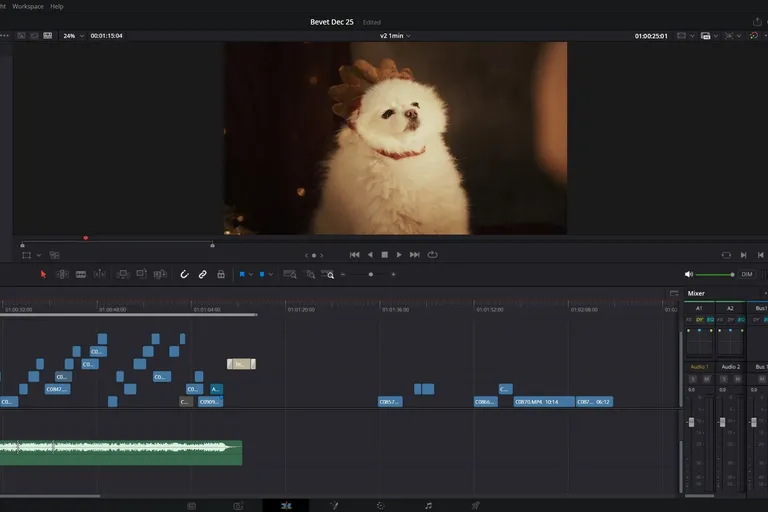
You open DaVinci Resolve and suddenly, everything is red. Media Offline. Hours of work frozen by two words.
Don't worry: in the vast majority of cases, it's recoverable. In this article, I go through every possible cause of Media Offline in DaVinci Resolve, with the matching fix, from the most common to the rarest.
If you prefer video, I covered everything in detail right here (in French):
Otherwise, let's go.
Why does DaVinci Resolve show "Media Offline"?
Before the fixes, there's one thing to understand.
DaVinci Resolve doesn't copy your files and doesn't move them. When you import media, the software simply notes its location in an internal database. That's all.
So when you see Media Offline, the message means only one thing: "I can't find the videos where I noted they were."
Once you understand that, most problems become much easier to diagnose.
How to fix Media Offline in DaVinci Resolve (Studio or not)
1. Moved file or disconnected hard drive
This is by far the most common cause. And let me reassure you: it's happened to me too, and it still happens (even to pros).
You moved a folder, reorganized your files or deleted something by accident. DaVinci Resolve looks for your videos in the old location and can't find them anymore.
It can even happen without you touching anything. If you use external hard drives, the letter assigned to the drive can change from one session to the next. The file path is no longer the same, and Resolve is left looking at nothing.
The fix
Right-click the offline clips in the Media Pool and select "Relink Selected Clips". Navigate to the folder that contains your files. Resolve automatically reconnects everything it finds.
2. Renamed file
This one's different. You can try relinking as much as you want, Resolve won't find the file. It's looking for an exact name, and that name no longer exists.
The fix
Here, you need to tell Resolve to replace the clip rather than relink it. Right-click the offline clip in the Media Pool and choose "Clip Operation > Replace Clip". Select your renamed file.
The upside: you keep all the changes already made in the timeline. Resolve just updates its database with the new name and the new location.
3. Hardware problem: cable, USB port, power
Sometimes the problem isn't the contents but the container.
If you work with external hard drives or SSDs, check the whole chain:
- The USB port may be faulty.
- The cable may be to blame (a damaged cable causes random disconnections).
- The drive may be underpowered, especially if you go through a USB hub without its own power supply.
- The drive itself may be starting to fail.
If you suspect the external drive, copy your videos to an internal drive and see if the problem goes away. It's the simplest test.
If the problem comes from an internal drive, check that DaVinci Resolve has permission to access the drive, and that drive sleep isn't causing dropouts during editing.
4. H.265/HEVC codec and variable frame rate
This is a very common case, especially if you shoot with a smartphone, a DJI drone or a recent GoPro.
H.265/HEVC
The free version of DaVinci Resolve has limited H.265 support, and it depends on your system. On Windows, it plays 8-bit and 10-bit H.265 in the profiles supported by the system, but 4:2:2 and graphics card acceleration are reserved for Studio. On Linux, H.264 and H.265 require Studio. All the details are in my comparison DaVinci Resolve free vs Studio.
Variable frame rate (VFR)
Smartphones often record with a variable frame rate. It's convenient for them, but it causes problems in editing software that expects a fixed frame rate: stuttering, dropouts, and sometimes Media Offline.
The fix
In both cases, the fix is to transcode your videos before importing them into Resolve. I recommend Shutter Encoder: it's free, it's the go-to tool, and it's easy to use. A good alternative: Handbrake.
5. Fusion composition too short
This one is less well known, but it's happened to me several times.
You're working in a Fusion composition and, at some point, you extend its duration. The Media Offline that then appears means Fusion can't read the media over the full duration, because some clips inside the composition aren't long enough.
The fix
Open the Keyframes tab on the Fusion page and check that all the media in the composition cover its full duration. Extend the source clips if needed. If the Fusion page still intimidates you, my Fusion masterclass (in French) covers everything from the start.
6. Clips deleted from the Media Pool
One day, one of my editors called me in a panic: every single file was offline. After investigating, I realized he had accidentally deleted an entire folder of videos directly in Resolve's Media Pool.
The natural reflex is to reimport the media. But that's not enough: Resolve doesn't automatically link the reimported clips to the missing clips in the timeline.
The fix
After reimporting your files, you have to tell Resolve manually to reconnect the clips. Two options:
- Reconform From Bins (in bulk): right-click your timeline in the Media Pool > Timelines > Reconform From Bins. Resolve matches the reimported clips to the offline clips in the timeline.
- Conform Lock with Media Pool Clip (clip by clip): select the clip in the Media Pool AND in the timeline, right-click the clip in the timeline and choose this option.
7. Corrupted cache
This happens more often than you'd think. When DaVinci Resolve generates cache, it may decide to read that cache instead of the source file. If the cache is corrupted, or if it sits on a failing drive, Resolve can no longer read it and shows Media Offline.
The fix
Delete the cache: Playback > Delete Render Cache > All. Then let Resolve regenerate it. If the problem comes back, choose another drive for the cache in the project settings.
8. Blackmagic Cloud: folder structure and paths
If you use Blackmagic Cloud, pay close attention to the structure and names of your folders, because media can go offline there too. Absolutely avoid special characters in file and folder names: they're often the source of the problem.
If something goes wrong, you'll probably have to remap the file paths by hand in the project settings.
9. The nuclear option: restore a backup
If after all that you still can't find the source of the problem, the project itself may be corrupted.
DaVinci Resolve automatically generates backups of your projects. Open File > Project Manager, right-click your project and select "Project Backups". Restore a version from before the problem.
Summary: quick Media Offline diagnosis in DaVinci Resolve
| Cause | Fix |
|---|---|
| Moved file or disconnected drive | Relink Selected Clips |
| Renamed file | Replace Clip |
| Hardware problem | Test cable, port, power |
| H.265 codec or VFR | Transcode with Shutter Encoder |
| Fusion composition too short | Check durations in the Keyframes tab |
| Clips deleted from the Media Pool | Reconform From Bins after reimporting |
| Corrupted cache | Playback > Delete Render Cache > All |
| Blackmagic Cloud | Check the folder structure, remap the paths |
| None of the above | Restore a project backup |
In the vast majority of cases, a moved or renamed file is behind the problem. But you now have everything you need to handle the trickier cases too.
FAQ
Why are my MP4 files showing Media Offline in DaVinci Resolve?
Most often, the file was moved or renamed, and you just need to relink it (Relink Selected Clips) or replace it (Replace Clip). If the MP4 comes from a smartphone or a drone, it may be in H.265 or variable frame rate: transcode it with Shutter Encoder before importing it.
Do I lose my edit when my media goes offline?
No. The edit, the cuts and the effects stay saved in the project. As soon as Resolve finds the files again, everything reappears exactly as it was.
Is Media Offline fixed the same way in DaVinci Resolve 20 and 21?
Yes. The Relink Selected Clips, Replace Clip and Reconform From Bins menus work the same way in recent versions, free and Studio alike.
Want to go further with DaVinci Resolve?
To learn everything about your video editing software, there's our course DaVinci Resolve, the beginner's guide (in French). It works whether you have the Studio version or not.
And if you don't want to miss the next DaVinci Resolve tutorials, subscribe to the channel: I regularly publish practical guides for editors.